

Almost every hosting plan comes with website backups now. The box is ticked, and most people stop thinking about it there. The trouble is that a backup is only worth something on the day you restore it, and that day tends to be a bad one: a hacked site, an update that broke the checkout, a page someone deleted by accident.
This post is about the gap between “we have backups” and “we can get the site back.” Most of it applies whatever host you use.
How often, and for how long
Two numbers decide what you can recover: how often backups run, and how many copies are kept. People often mix them up.
Frequency sets how much you can lose. With a daily backup, the worst case is losing a day of changes. For a brochure site that changes once a month, that’s nothing. For a shop taking orders all day, it could be a day of orders.
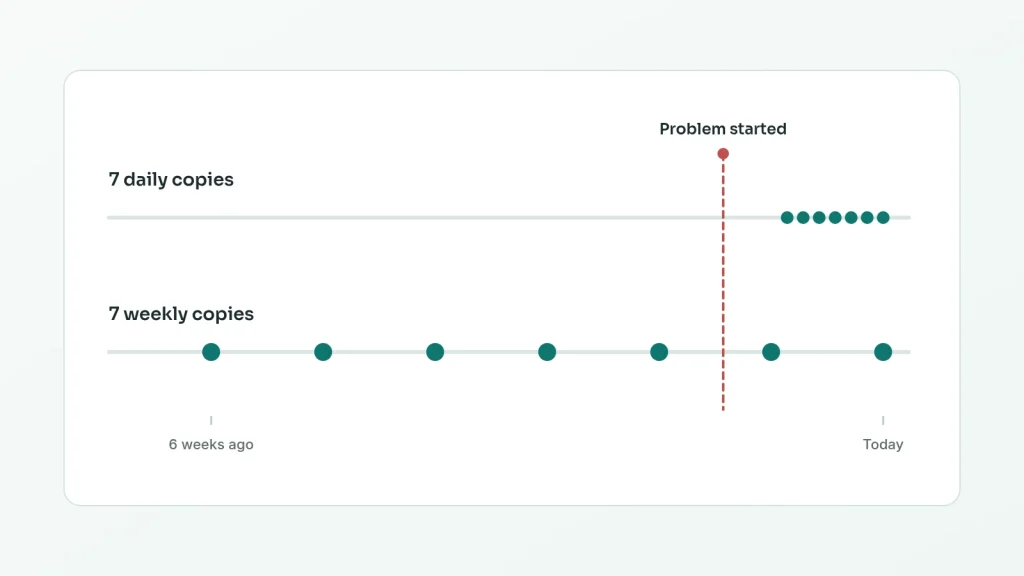
Retention sets how far back you can go. This matters more than people expect, because problems aren’t always noticed straight away. A hacked site can sit quietly for weeks before anyone sees the spam links. If you only keep seven daily copies, and the hack happened ten days ago, every copy you have contains it.
When retention is counted in copies rather than days, the schedule changes the window. Seven copies taken daily covers a week. Seven copies taken weekly covers about seven weeks, but each restore loses more recent work. Pick based on how often your site changes and how quickly you’d notice a problem.
A backup on the same server isn’t a backup
If the copies sit on the same server as the website, they share its fate. A failed disk, a compromised server or a mistake that wipes the account takes the backups with it.
Real backups are stored somewhere else: separate storage, ideally run separately from the web servers. Ask your host where the copies physically live. “On a different disk in the same machine” is better than nothing, but not much.
Encryption, and the passphrase you can’t lose
A full backup is a complete copy of your business’s website: every file, every page, and the database with customer names, email addresses and order history. If that copy leaks, it’s as bad as the site itself leaking.
Encrypting backups with a passphrase you set fixes that. Anyone who gets hold of the file without the passphrase has a block of noise.
It also creates a new way to fail. If the passphrase is lost, the backups can’t be restored, and with proper encryption nobody, not even the host, can get them back. So treat the passphrase like the master key it is:
- Store it in a password manager, not in your head or on a sticky note.
- Make sure at least one other trusted person in your business can get to it.
- If a developer or agency set up your backups, ask them for it now, not after they’ve moved on.

Can you restore it yourself?
Find out what a restore actually involves before you need one. On some plans it’s a button in the control panel. On others you open a ticket and wait, and some hosts charge a fee for each restore.
It’s also worth knowing exactly what a restore does. Usually it replaces the whole site, files and database, with the copy. Anything added since that copy was made is gone: new orders, form entries, comments, uploaded images. If the site is still partly working, download anything recent you’ll want to keep before you restore.

Run a restore drill of your own
The only way to know a backup works is to restore it. Don’t assume your host test-restores your backups for you. We don’t, so this one is on you. It doesn’t take long, and doing it once on a quiet afternoon is much better than doing it for the first time during an emergency.
A simple drill:
- Pick a recent copy and check you can find the passphrase without hunting for it.
- Restore it somewhere that isn’t your live site, if you can: a spare test website or a copy on your own computer.
- Click around. Check that pages load, images show, forms work and you can log in to the admin.
- Write down how long it took and anything that tripped you up.
If your only option is restoring over the live site, pick a quiet time, take a fresh backup first, and restore that same fresh copy. You’ll learn the process with almost nothing to lose. Repeat the drill once or twice a year, and after any big change to the site.
Keep a copy of your own
Host backups protect you from most problems. They don’t protect you from problems with the host itself: an account suspended over a billing mix-up, a dispute, or a business that closes. For that, keep your own copy somewhere you control.
It doesn’t need to be fancy. Download the website’s files over SFTP and export the database (on WordPress, wp db export in the website console writes it to a file you can download with the rest) every month or so, or after big changes, and store both somewhere safe. A WordPress backup plugin that sends copies to your own cloud storage works too, and the WordPress handbook’s backup guide walks through the manual route. Encrypt it, or keep it somewhere private, because it contains the same customer data as the site.
What website backups don’t cover
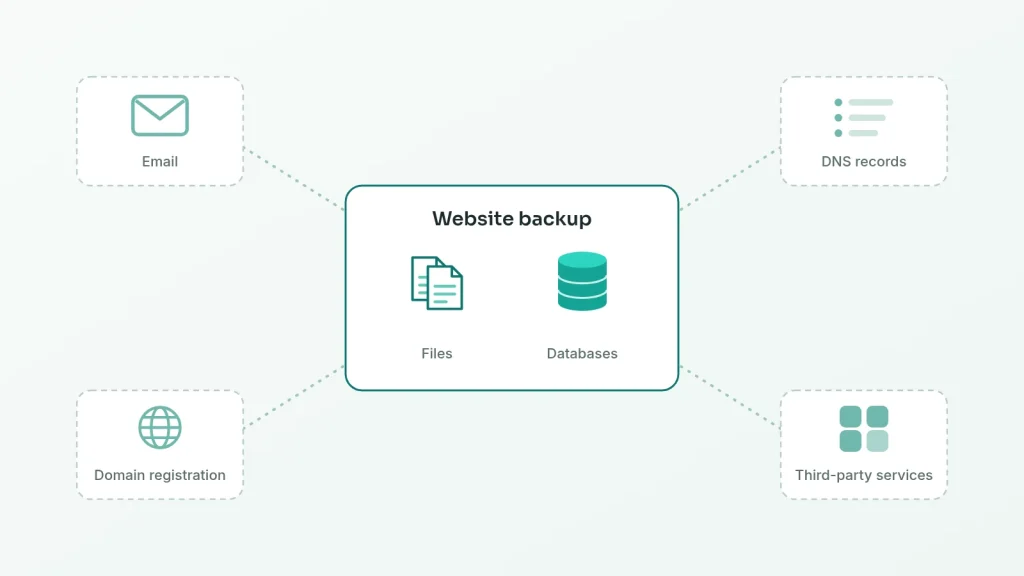
A hosting backup covers the website: its files and its databases. Plenty of things your website depends on live elsewhere and need their own plan:
- Email. If your mailboxes are with a separate email provider, they aren’t in your website backup.
- DNS records. If your DNS is managed at your registrar or another service, keep a note or export of the records, including the ones for email.
- Your domain registration. Keep it in your own name, with auto-renew on and a current card.
- Third-party services such as payment processors, email marketing lists, form services and analytics. Each keeps its own data.
- License keys for paid plugins and themes, and the logins for all of the above.
A short document listing where each of these lives, and who can log in, is one of the most useful recovery tools a small business can have.
How Ateculus handles backups
You choose daily, weekly or monthly backups of your website’s files and databases. Each copy is encrypted with AES-256 using a passphrase you set before it leaves the server, then stored off the server in separate object storage. Plans keep 7 to 55 copies, and you restore any copy yourself in one click from the control panel. If a backup fails, we’re told straight away.
Some honest limits: without your passphrase no copy can be restored, not even by us. We don’t automatically test-restore customer backups, so run your own drill. We don’t host email, so your mailboxes need their own backup with your email provider, and keep a note of your DNS records wherever they’re managed. See pricing for copies per plan, and How it works for how our own panel is backed up.