
AI chat tools are genuinely useful for Linux work. They explain error messages, remind you of command syntax and suggest where to look next. They also produce commands that look perfectly reasonable and would quietly wipe a folder, open your server to the internet, or break the next reboot. And they say both kinds of thing in the same confident tone, so every Linux command from AI deserves a careful read before it runs.
The AI can’t see your server. It doesn’t know your file layout, what’s running, or what you changed last week. So before you paste anything into a terminal, read it. Here’s how.
Read a Linux command from AI one piece at a time
A Linux command is a program name followed by options and arguments. Long commands are often several programs joined together with | (send the output of one to the next), && (run the next only if this one worked) or ; (run the next regardless). Split the command at those points and make sure you understand each part.
For each program, the manual page tells you what it does and what every option means. man rsync, man find and so on work on almost every server, and the same pages are online at man7.org. If an option isn’t in the manual, that’s worth knowing too: AI tools sometimes invent options that don’t exist, or mix up the version for one Linux family with another.
Then ask three plain questions about the whole thing:
- Does it change anything, or does it only look? Commands like
ls,df,cat,grepandsystemctl statusonly read. - If it changes something, what exactly, and can that be undone?
- Does it need
sudo? Root can change anything, so a mistake with sudo has no safety net.
Red flags that deserve a second look
Some patterns aren’t always wrong, but they should always make you slow down.
rm -rf, especially with a variable
rm -rf deletes recursively with no confirmation and no recycle bin. It gets more dangerous when part of the path is a variable. If an AI writes rm -rf "$BACKUP_DIR/"* in a script and BACKUP_DIR is empty because of a typo, the shell sees rm -rf /*. Check every path in a delete command by running ls on it first, with the exact same path.
Piping a download straight into a shell
Commands like curl -fsSL https://example.com/install.sh | bash run a script from the internet as soon as it arrives, without you seeing it. Some legitimate projects install this way. The safer habit is to download it, read it, then run it:
curl -fsSL -o install.sh https://example.com/install.sh
less install.sh
bash install.sh
If you can’t tell what the script does, that’s your answer about whether to run it as root.
Recursive permission changes
chmod -R and chown -R change every file under a folder. chmod -R 777 in particular makes everything writable by every user and process on the server. It makes “permission denied” errors go away by removing the protection that caused them. There’s almost always a narrower fix, which we go through in fixing permission denied errors without chmod 777.
Editing config files in place
sed -i edits a file directly. One wrong pattern can change lines you didn’t intend across a whole config file, and there’s no undo. If you must use it, keep a backup by giving the option a suffix, and preview first without -i:
# Preview: prints the changed file, edits nothing
sed 's/^PermitRootLogin yes/PermitRootLogin no/' /etc/ssh/sshd_config | less

# Edit, keeping the original as sshd_config.bak
sudo sed -i.bak 's/^PermitRootLogin yes/PermitRootLogin no/' /etc/ssh/sshd_config
Turning off SELinux or the firewall
setenforce 0, systemctl stop firewalld and ufw disable often do make the problem disappear, which is why AI tools suggest them. They work by removing a whole layer of protection to fix one blocked thing. The real fix is usually one SELinux label or one firewall rule. We cover that in AI suggested disabling your firewall.
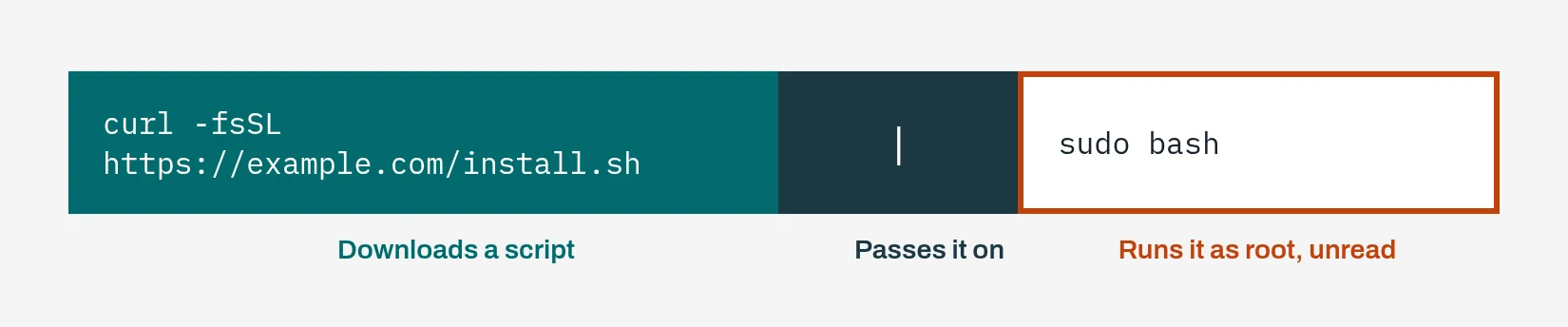
sudo bash runs a script nobody has read, with full control of the server.Use dry runs and test modes
Many tools can show you what they would do without doing it. Use those modes before the real thing:
rsync -avn source/ dest/          # -n: show what would be copied
sudo dnf remove somepackage --assumeno   # Red Hat/Rocky: show, then answer no
sudo apt-get -s remove somepackage       # Debian/Ubuntu: simulate only
sudo apachectl configtest         # check Apache config syntax
sudo nginx -t                     # check nginx config syntax
sudo sshd -t                      # check SSH config before restarting
The config checks matter a lot. Restarting SSH with a broken config can lock you out of a remote server, and restarting a web server with a typo takes every site on it offline. Run the check, then restart only if it passes. When you change SSH settings, keep your current session open and test the new settings in a second one. If they fail, the first session is your way back in.
Take a backup of whatever the command touches
Before a command changes a file, copy the file:
sudo cp -a /etc/nginx/nginx.conf /etc/nginx/nginx.conf.$(date +%F)The -a option keeps ownership and permissions (and SELinux labels on Red Hat and Rocky). Before anything that touches a database, export it. Before a big change on a virtual server, take a snapshot from your provider’s panel if you can. A backup turns a mistake into a ten-minute restore instead of a rebuild.
Ask the AI what the command changes, then check the answer
A good follow-up question is “what does each part of this command do, what will it change, and how do I undo it?” The answer is often helpful. It also sometimes reveals that the AI has assumed something about your system that isn’t true, like the wrong Linux family, a different web server, or a file path that doesn’t exist on your machine.
Treat that explanation as a starting point, not proof. Check it against the manual page and against your own server: does that file exist, is that service installed, is that the right package manager? If the explanation and the man page disagree, trust the man page.
Stop when you notice you’re running fixes one after another without understanding them. Each command changes the system the next suggestion was based on, and the problem gets harder to unpick. We wrote more about that loop in when AI can’t fix your website.
How we can help
If you have a command or a plan from an AI tool and you’re not sure about it, our AI second opinion costs $79 per review, with a reply within three working days. We tell you what’s safe, what isn’t and what to do instead. Remove any passwords, keys and customer data before you send it.
It isn’t an emergency service, so don’t wait on us with a server down. If the review shows the job needs hands-on work, it can be followed by a booked fix if you want one.