
When a Linux server runs out of disk space, things fail in odd ways. The database refuses writes, websites show errors, mail queues stall, and some services won’t start at all. The fix is rarely just “buy a bigger disk”. Something is filling it, and if you don’t find out what, it will fill the bigger disk too.
The commands below work on Red Hat, Rocky, Debian and Ubuntu unless noted. Most of them only look; we flag the ones that delete anything. (If your disk is busy rather than full, that’s a different problem, covered in why is my Linux server so slow.)
See which filesystem is full
Start with df, which shows each mounted filesystem, its size and how much is used:
df -hLook at the Use% column. Note which mount point is full, because it might not be /. Many servers have a separate /var, /home or /boot, and a full /boot causes completely different problems from a full /var. Temporary filesystems like tmpfs and devtmpfs live in memory and can be ignored here.
Find the biggest folders with du
Once you know which filesystem is full, work down from its top level to find the heavy folder. du totals the space used under each directory:
sudo du -xh --max-depth=1 / 2>/dev/null | sort -hThe -x option keeps du on one filesystem, so it doesn’t wander into other disks or network mounts. The biggest folders sort to the bottom. Repeat the command on the biggest one (/var, say), then the biggest folder inside that, until you find the culprit. On a large disk this can take a minute or two.
If you’d rather browse, ncdu does the same job interactively and lets you move through folders with the arrow keys. On Debian and Ubuntu it’s sudo apt install ncdu. On Red Hat and Rocky it comes from the EPEL repository. Run it with sudo ncdu -x /. Be aware that pressing d inside ncdu deletes the highlighted item.
To find individual large files, this read-only search lists anything over 500 MB on the root filesystem:
sudo find / -xdev -type f -size +500M -exec ls -lh {} + 2>/dev/null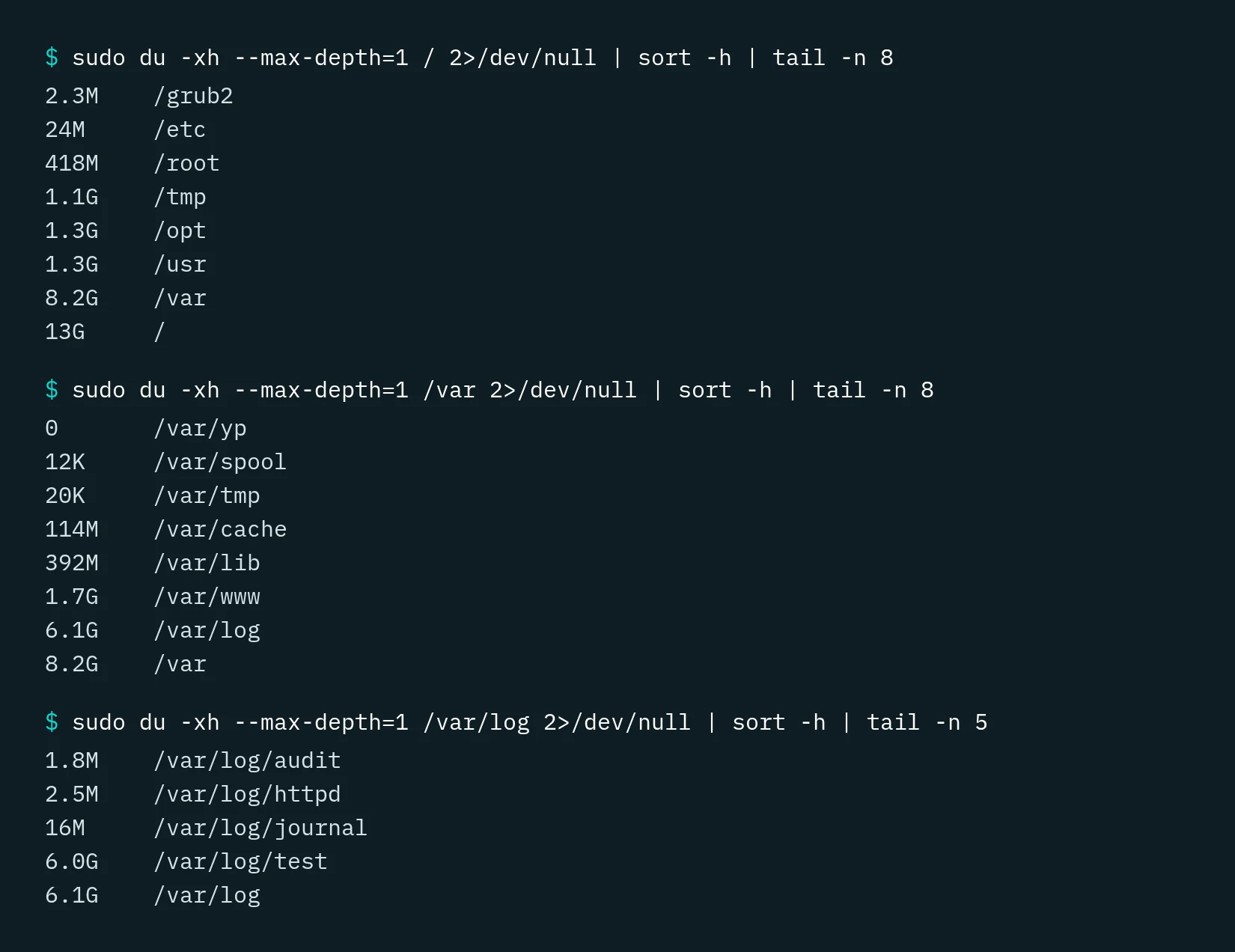
/var/log/test.Logs and the systemd journal
On servers, the most common space eater is logs. Look in /var/log first. A web server log that is never rotated, or an application stuck writing the same error thousands of times a second, can fill a disk in hours.
The systemd journal keeps its own logs, and you can see how much space it uses:
journalctl --disk-usageIf that number is large, you can trim old entries. This deletes archived journal files until the total is under 500 MB, keeping the newest entries:
sudo journalctl --vacuum-size=500MThat removes old logs for good, so don’t run it if you’re in the middle of investigating something that happened weeks ago. To stop the journal growing that big again, set SystemMaxUse= in /etc/systemd/journald.conf and restart systemd-journald.
For a huge text log file that a running service is still writing to, don’t just delete it. Fix whatever is producing the flood first, then check that logrotate is configured for that log (look in /etc/logrotate.d/). If you need space back right now, compress or move an older rotated copy rather than the live file.
Deleted files that still take up space
Here is a puzzle that catches many people. Someone deletes a 20 GB log file, but df still says the disk is full. That happens because a running program still has the file open. Linux removes the name straight away, but the space isn’t released until the last program closes the file.
To list files that have been deleted but are still open:
sudo lsof +L1The output shows the program name, its process ID and the size of each file. Restarting that service (for example sudo systemctl restart httpd on Red Hat or sudo systemctl restart apache2 on Debian) closes the file and frees the space. Plan the restart if it’s a production service. If lsof isn’t installed, it’s in a package of the same name on both families.
Out of inodes, not out of disk space
Sometimes df -h shows plenty of free space, yet the system still says “No space left on device”. Every file uses one inode, and some filesystems have a fixed number of them. Millions of tiny files can use them all up while barely touching the disk space.
df -iIf IUse% is at or near 100, look for folders with huge numbers of small files. Common causes are PHP session files, cache folders, and mail queues full of undelivered messages. This counts files per folder under /var:
sudo find /var -xdev -type f | cut -d/ -f2-4 | sort | uniq -c | sort -n | tailOld kernels and package caches
Each kernel update leaves the previous version installed so you can boot back into it. That’s a good safety net, and on a small /boot partition it can also fill the disk.
On Red Hat and Rocky, dnf keeps three kernels by default, set by installonly_limit in /etc/dnf/dnf.conf. To remove older ones beyond a limit of two, run the command below; dnf shows what it will remove and asks before doing anything:
sudo dnf remove --oldinstallonly --setopt installonly_limit=2 kernelOn Debian and Ubuntu, sudo apt autoremove --purge removes old kernels and other packages no longer needed, again after showing you the list. Read that list before you say yes. Never remove the kernel you are currently running; uname -r shows which one that is. Keeping at least one older kernel matters, as we explain in Linux server won’t boot after an update.
Package caches are safe to clear: sudo dnf clean all or sudo apt clean.
Backups left on the server
Last on the list, and very common: backups that were made on the server and never moved off it. Database dumps in /root, a site-backup-final.tar.gz in a home folder, a backup plugin that keeps thirty copies inside the website folder. The large-file search above usually finds them.
Before deleting any of them, make sure a copy exists somewhere else. A backup that lives only on the server it protects disappears along with that server, so moving them off is better than deleting them. Keeping backups only on the server is one of the common Linux server security mistakes. And if a backup plugin is storing archives inside the web folder, check that they can’t be downloaded from the web, because they often contain the database password.
How we can help
If you’d like help working through a full disk, or making sure it doesn’t happen again, our Linux help is a booked screen share at $150 an hour. You stay in control of your server and run the commands while we work through the problem together, on Red Hat, Rocky and other Linux.
Sessions are booked in advance; we don’t offer emergency or on-call service. We’ll agree the scope and price before we start.