
When people try to move a website without downtime and it goes badly, it usually fails for the same reason: the switch happens before anyone has checked that the new server actually works. Visitors land on a half-copied site, email stops, or orders placed during the move vanish.
Avoiding that is mostly about order. Prepare early, copy everything, test the new server privately, and only then point the world at it. This applies whether the site runs on WordPress, Joomla, Magento or something else entirely.
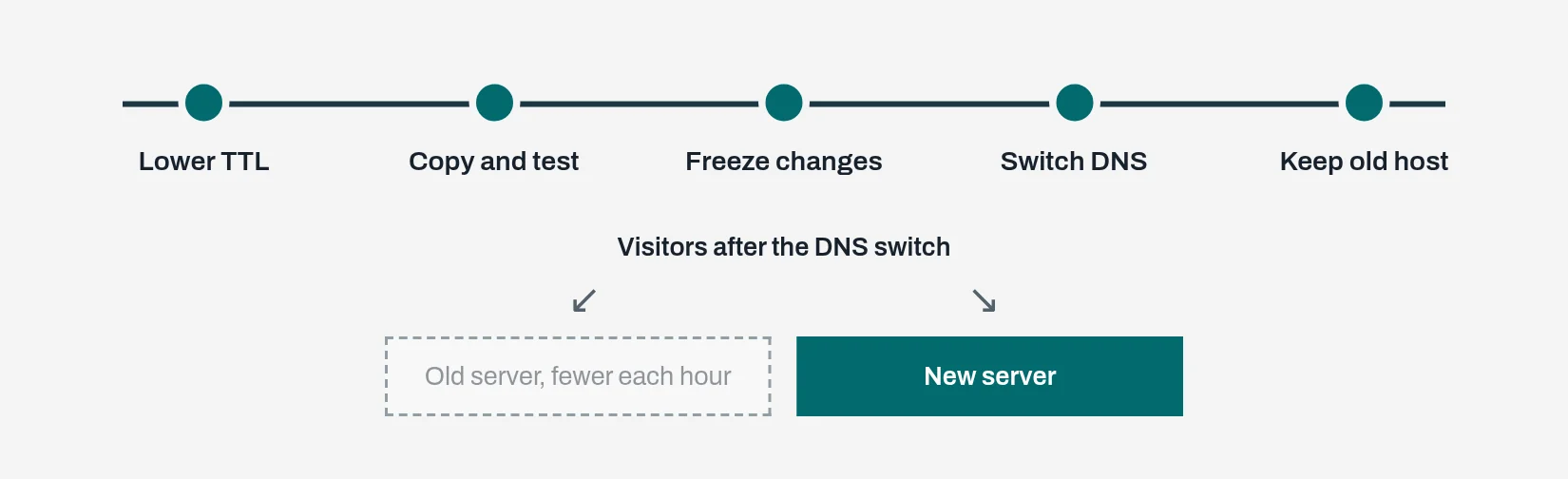
Lower the DNS TTL a day or two ahead
When you switch hosts, you change your domain’s DNS records to point at the new server’s address. Computers around the internet remember the old answer for as long as the record’s TTL (time to live) says, in seconds. If the TTL is 86400, some visitors could keep going to the old server for up to a day after you switch.
Check your current TTL with dig (on Red Hat and Rocky it’s in the bind-utils package; on Debian and Ubuntu, dnsutils):
dig +noall +answer www.example.com AThe number after the name is the TTL. At your DNS provider, lower it to something short like 300 (five minutes) at least one full old-TTL period before the move. If it was a day, change it at least a day ahead, so every cached copy of the long TTL has expired by switch time. After the move has settled, you can raise it again.
Make a full copy, not just the website files
A website is more than its public folder. A complete copy usually means:
- All the site files, including uploads, which on some setups live outside the main web folder.
- The database, exported in a consistent state. For MySQL and MariaDB,
mysqldump --single-transactionavoids locking InnoDB tables during the export. - Configuration that lives outside the site: web server rules, PHP settings, cron jobs, and any environment variables the app reads.
- A full export of your DNS zone, so no record (mail, verification, subdomains) gets left behind.
Also check that the new server runs the same major PHP and database versions, with the same PHP extensions. A version jump during a move mixes two risky changes into one. We list the commonly missed items in the website migration checklist.
For a large site, copy the files once well before the move with rsync, then run it again near the end. The second run only copies what changed, so it’s quick:
# Preview what would be copied (-n is a dry run, nothing changes)
rsync -avzn /var/www/html/ user@new-server:/var/www/html/

# Run it for real once the preview looks right
rsync -avz /var/www/html/ user@new-server:/var/www/html/
The trailing slashes matter: with them, rsync copies the contents of the folder into the destination folder. Be careful with the --delete option you’ll see in many guides; it removes files on the destination that aren’t on the source, which is useful and also unforgiving if you swap the two paths.
To move a website without downtime, test before touching DNS
This is the step that prevents downtime. Before anyone else sees the new server, you should load the site from it yourself and check that it works.
You can tell your own computer to use the new server for your domain while the rest of the world still goes to the old one. One way is a line in your computer’s hosts file. Another, for a quick check from a terminal, is curl’s --resolve option (replace 203.0.113.10 with the new server’s address):
curl -sI --resolve www.example.com:443:203.0.113.10 https://www.example.com/Then test properly in a browser: the home page and a few inner pages, images, contact forms, logins, search, and for a store, a full test order. We cover the techniques and their pitfalls in how to test a website on its new host before changing DNS.
Freeze changes during the switch
Between your final copy and the DNS switch, anything written to the old server’s database is at risk of being lost: new orders, form entries, comments, user sign-ups, blog posts the marketing person published that afternoon.
For a brochure site, a simple “no edits until Thursday” note to everyone with a login is enough. For a store or a membership site, it takes more care. Pick a quiet time, put the old site into maintenance mode briefly, take the final database copy, import it on the new server, and switch DNS. The maintenance window can be short if you’ve rehearsed the import beforehand and know how long it takes.
Switch DNS and sort out the SSL certificate
With the TTL already short, changing the A record (and AAAA, if you use IPv6) moves most visitors within minutes. Change only the website records. Leave the MX records for email alone unless email is moving too, and if it is, that deserves its own plan.
The certificate needs thought in advance. Free certificates from Let’s Encrypt usually prove you control the domain by answering a request on the server the domain points to, so the new server can’t get one through that method until DNS points at it. You have a few options:
- Copy the existing certificate and key to the new server temporarily, then issue a new one after the switch.
- Use a DNS-based challenge, which works before the switch if your DNS provider supports it.
- Accept a few minutes of certificate warnings right after the switch, which is the option to avoid on a store.
The Let’s Encrypt challenge types page explains the difference.
Keep the old host running for a while
Don’t cancel the old hosting the day you switch. Some visitors and some mail servers will still use cached DNS for a little while, and you may discover a missing file or a forgotten cron job a week later. Having the old server still there makes that a five-minute fix instead of a crisis.
Watch the old server’s access log for a few days. When real visitor traffic has dropped to nothing, and you’ve downloaded a final backup and checked the new server’s email, forms and scheduled jobs, it’s safe to cancel. Before you do, read what to verify before canceling your old hosting account.
How we can help
Our hosting moves start at $395 per site (Magento from $950). We first check whether hosting is really the problem, because sometimes a move won’t fix what’s wrong. Then we plan the move, make a full copy, test on the new server before switching, change DNS at a planned quiet time and check pages, images, forms and email afterwards. Your site stays on an account in your name.
Moves are booked in advance. If you’re not sure a move is the right call, ask for a free first look.