
You clicked update, and now the site shows a white page, a “critical error” message, or a layout that has fallen apart. The natural reaction is to start clicking: update something else, reinstall the theme, switch plugins on and off. That is how a website broken after an update ends up with three problems nobody can untangle instead of one.
Here is what to do instead, in roughly the order we do it ourselves.
Website broken after an update? Stop changing things
Every change you make now hides the evidence of what went wrong. If you update a second plugin “to see if it helps”, you no longer know whether the first update or the second one is the problem, and the error log fills with new messages that bury the original one.
Take a breath. A broken site for twenty minutes while you work carefully is better than a broken site for two days because the cause got buried. If you run a store and orders matter, consider putting up a maintenance page while you work, so customers aren’t half-way through a checkout that fails.
If anyone else has access to the site (a colleague, a developer, an agency), tell them to hold off too. Two people fixing the same site at once is a reliable way to make things worse.
Back up the broken site as it is now
Backing up something that’s broken sounds backwards, but it is the most accurate record of the current state, including whatever the update did to the database. If your next step makes things worse, you can get back to here.
Use your host’s backup tool if it has one, or take a copy yourself. On a Linux server with shell access, something like this works for most PHP sites (adjust the path and database name):
# Copy the site files into your home directory
tar -czf ~/site-files-$(date +%F).tar.gz -C /var/www/html .

# Export the database without locking InnoDB tables
mysqldump --single-transaction your_database_name > ~/site-db-$(date +%F).sql
On WordPress with WP-CLI installed, wp db export does the database part. Neither command changes the site; they only read from it. Check that the files actually appeared and aren’t zero bytes before you go on.
Write down exactly what was updated
Make a short list: which plugin, theme, extension, module or core version was updated, from which version to which, and at what time. If several things were updated in one click, list all of them. If your host also changed something recently, like the PHP version, put that on the list too, since it often coincides with update day.
On WordPress, WP-CLI can show what is installed and at what version:
wp plugin list
wp theme list
wp core version
That list is your suspect list. Most of the time, the cause is on it.
Read the error log before you guess
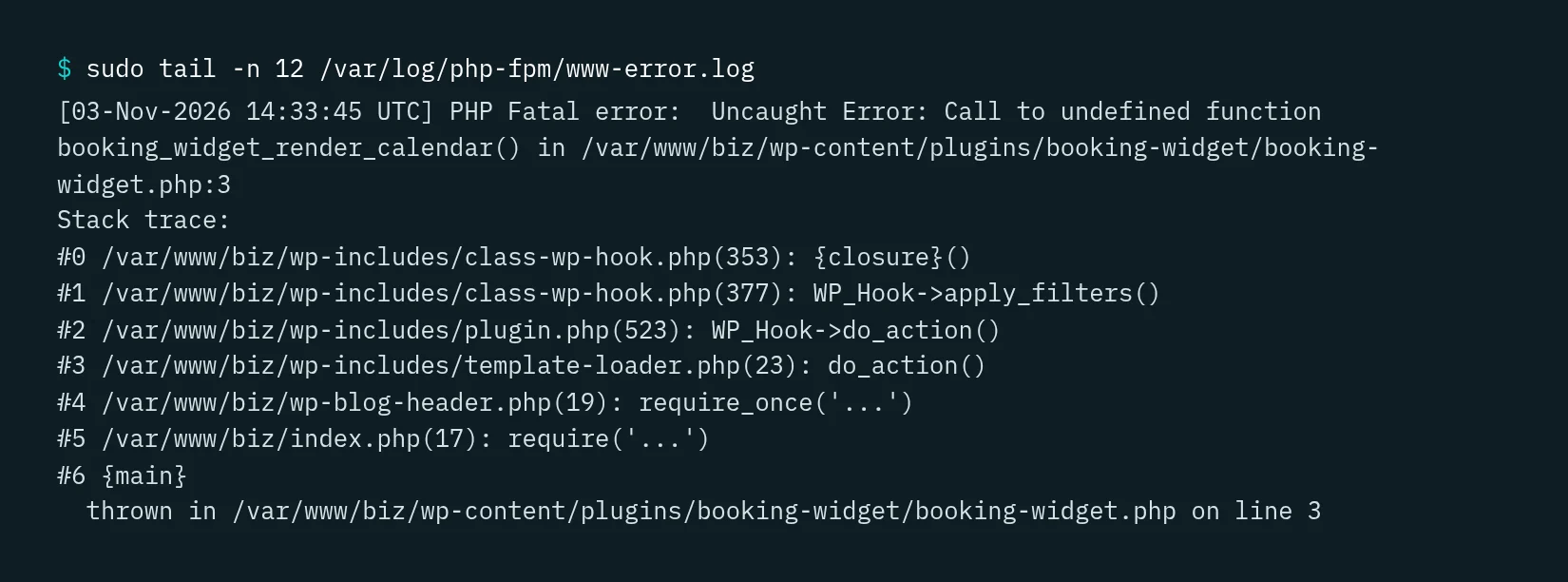
A white screen or a generic error page tells you almost nothing. The error log usually tells you the file and line that failed, and the file path often names the plugin directly.
Where to look depends on the setup:
- Your hosting control panel usually has an “Errors” or “Logs” page.
- PHP errors on Red Hat or Rocky:
/var/log/php-fpm/www-error.log. Both Apache and nginx hand PHP to PHP-FPM there by default, so a PHP crash usually lands in this file, not in the web server’s own log. - The web server’s own log, for problems like a broken
.htaccess: Apache on Red Hat or Rocky uses/var/log/httpd/error_log, Debian or Ubuntu/var/log/apache2/error.log, and nginx/var/log/nginx/error.log. On Debian and Ubuntu, PHP-FPM errors often end up in the web server’s log too. - Magento keeps its own logs in
var/log/inside the store, and Joomla inadministrator/logs/.
Look at the last few lines just after you load the broken page:
sudo tail -n 50 /var/log/php-fpm/www-error.logA line like PHP Fatal error: Uncaught Error: Call to undefined function ... in /var/www/html/wp-content/plugins/some-plugin/... points straight at some-plugin. We go deeper on reading these in what your website error logs are trying to tell you.
Use WordPress recovery mode if you get the email
Since version 5.2, WordPress catches many fatal errors and emails the site’s admin address a special link that opens a “recovery mode” login. In recovery mode, the plugin or theme that caused the crash is paused for you only, so you can log in and deactivate it while visitors still see the error. The email names the plugin, which saves a lot of guessing.
Check the admin inbox and its spam folder. If the email never arrived (common when the site can’t send mail reliably), you can still turn on WordPress’s own debug log by adding these lines to wp-config.php, above the “That’s all, stop editing” comment:
define( 'WP_DEBUG', true );
define( 'WP_DEBUG_LOG', true );
define( 'WP_DEBUG_DISPLAY', false );
Errors then go to wp-content/debug.log instead of the screen. Remove these lines and delete the log when you’re done, because the log can be read from the web if you leave it there. The WordPress debugging guide covers the options.
Roll back one thing at a time
Once you have a suspect, undo that one thing and test. Not three things, one. If the site comes back, you have your answer. If not, put it back the way it was and try the next suspect.
On WordPress, if you can’t reach the dashboard, rename the plugin’s folder so WordPress can’t load it. This is safe and easy to reverse by renaming it back:
mv wp-content/plugins/some-plugin wp-content/plugins/some-plugin.offWith WP-CLI you can deactivate it, or reinstall the previous version if the plugin is in the WordPress.org directory:
wp plugin deactivate some-plugin
wp plugin install some-plugin --version=1.2.3 --force
The --force option overwrites the current plugin files with the older version, so make sure your backup from earlier is in place first. Some updates also change the database, and rolling back the files won’t undo that. That is when the backup you took before the update (if there was one) becomes important, and when it is worth slowing down further.
Test the next update on a staging copy
When the site is working again, the job isn’t quite done. The update you rolled back still needs to happen eventually, usually because it fixes security problems.
A staging copy is a private clone of the site where you can apply the update, see it break, and work out the fix without customers watching. Many hosts offer one-click staging; otherwise a copy on a subdomain protected by a password does the job. Apply updates there first, one at a time, and check the pages that matter: home page, contact form, login, cart and checkout. Then repeat the same steps on the live site.
If the broken update came from a PHP version change rather than a plugin, the approach is a little different. See PHP upgrade broke your website.
How we can help
If the site is still broken, or you’d rather not do this yourself, our website fixes are $125 an hour, with a fixed quote first for bigger jobs. We back up before changing anything, work on a staging copy wherever possible, change one thing at a time and write down what we changed.
Repairs are booked work, not an emergency service, so we can’t promise to be on it within the hour. We’ll agree the scope and price in writing before we start.